

Skip to content
Free Excel Tutorials
  • Home
  • Excel For Beginners
  • Excel Intermediate
  • Advanced Excel For Experts

Data Analysis

  • How to create Gauge Chart in Excel
  • What-If Analysis: Scenarios and Goal Seek in Excel
  • How To Load Analysis ToolPak in Excel
  • Move chart to a separate worksheet in Excel
  • Conditional Formatting Rules in Excel

References

  • To count total rows in a range in Excel
  • MATCH function: Description, Usage, Syntax, Examples and Explanation
  • Last row number in range
  • How to use Excel VLOOKUP Function
  • How to use Excel FORMULATEXT function

Data Validations

  • Excel Data validation must not contain
  • Excel Data validation date in next 30 days
  • Excel Data validation allow weekday only
  • Excel Data validation must begin with
  • Excel Data validation specific characters only

Cell References: Relative, Absolute and Mixed Referencing Examples

by

Cell references in Excel are very important.

Building a structure or a template in excel using formula one needs to understand the difference between relative, absolute and mixed reference.

Relative Reference

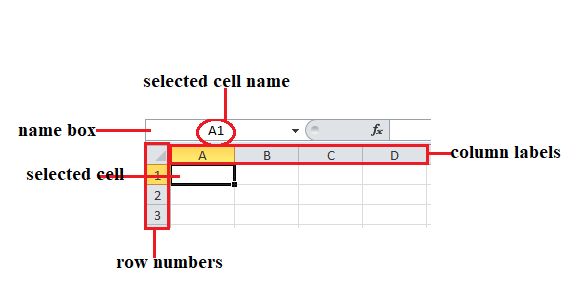
To identify relative referencing, it is simply the ‘cell name’  as illustrated below.

N/B: Cell Name comprises of a column label and a row number of a selected cell.
By default, Excel uses relative references. See the formula in cell D2 below. Cell D2 references (points to) cell B2 and cell C2. Both references are relative.
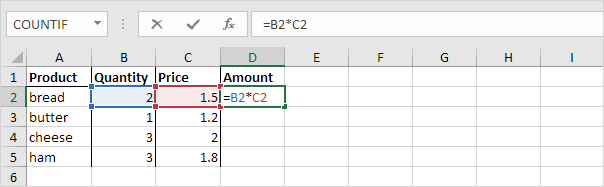
1. Select cell D2, click on the lower right corner of cell D2 and drag it down to cell D5.

Cell D3 references cell B3 and cell C3. Cell D4 references cell B4 and cell C4. Cell D5 references cell B5 and cell C5. In other words: each cell references its two neighbors on the left.

Absolute Reference

To identify absolute referencing, there is a dollar sign in front of the column label and a dollar sign in front of the row number, e.g $A$1.

See the formula in cell E3 below.

1. To create an absolute reference to cell H3, place a $ symbol in front of the column letter and row number ($H$3) in the formula of cell E3.
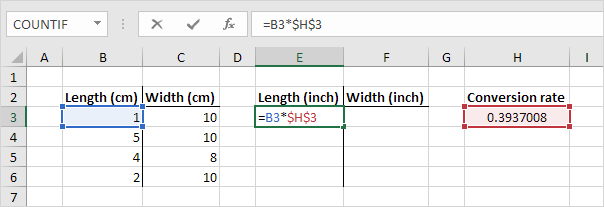
2. Now we can quickly drag this formula to the other cells.
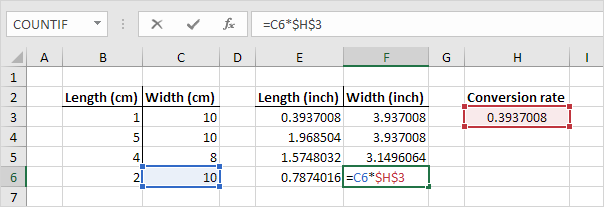
The reference to cell H3 is fixed (when we drag the formula down and across). As a result, the correct lengths and widths in inches are calculated.

Mixed Reference

Sometimes we need a combination of relative and absolute reference (mixed reference).

To identify Mixed Reference, there is a dollar sign either in front of the column label or in front of the row number, e.g $A1 or  A$1

1. See the formula in cell F2 below.
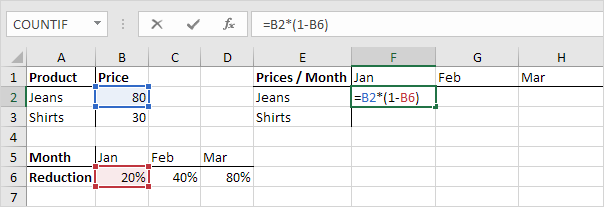
2. We want to copy this formula to the other cells quickly. Drag cell F2 across one cell, and look at the formula in cell G2.
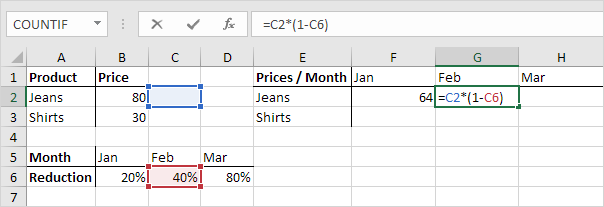
Do you see what happens? The reference to the price should be a fixed reference to column B. Solution: place a $ symbol in front of the column letter ($B2) in the formula of cell F2. In a similar way, when we drag cell F2 down, the reference to the reduction should be a fixed reference to row 6. Solution: place a $ symbol in front of the row number (B$6) in the formula of cell F2.

Result:
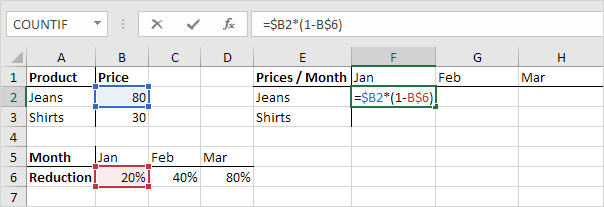
Note: we don’t place a $ symbol in front of the row number of $B2 (this way we allow the reference to change from $B2 (Jeans) to $B3 (Shirts) when we drag the formula down). In a similar way, we don’t place a $ symbol in front of the column letter of B$6 (this way we allow the reference to change from B$6 (Jan) to C$6 (Feb) and D$6 (Mar) when we drag the formula across).

3. Now we can quickly drag this formula to the other cells.
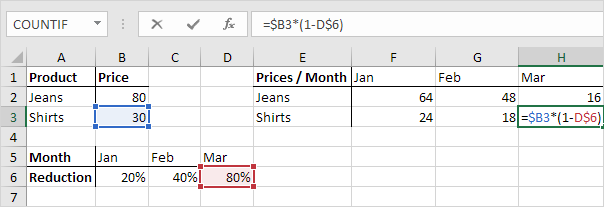
The references to column B and row 6 are fixed

Post navigation

Previous Post:

TRUE function: Description, Usage, Syntax, Examples and Explanation

Next Post:

Excel Pie Chart

Leave a Reply Cancel reply

Your email address will not be published. Required fields are marked *

Learn Basic Excel

Ribbon
Workbook
Worksheets
Format Cells
Find & Select
Sort & Filter
Templates
Print
Share
Protect
Keyboard Shortcuts

Categories

  • Charts
  • Data Analysis
  • Data Validation
  • Excel Functions
    • Cube Functions
    • Database Functions
    • Date and Time Functions
    • Engineering Functions
    • Financial Functions
    • Information Functions
    • Logical Functions
    • Lookup and Reference Functions
    • Math and Trig Functions
    • Statistical Functions
    • Text Functions
    • Web Functions
  • Excel VBA
  • Excel Video Tutorials
  • Formatting
  • Grouping
  • Others

Logical Functions

  • IF with boolean logic in Excel
  • How to use Excel OR Function
  • XOR function: Description, Usage, Syntax, Examples and Explanation
  • IFNA function: Description, Usage, Syntax, Examples and Explanation
  • TRUE function: Description, Usage, Syntax, Examples and Explanation

Date Time

  • Calculate days remaining in Excel
  • How to calculate project start date based on end date in Excel
  • Add decimal hours to time in Excel
  • Convert text timestamp into time in Excel
  • Create date range from two dates in Excel

Grouping

  • Group arbitrary text values in Excel
  • Group times into 3 hour buckets in Excel
  • Map text to numbers in Excel
  • How to randomly assign people to groups in Excel
  • If cell contains one of many things in Excel

General

  • Customize Ribbon In Excel
  • Subtotal invoices by age in Excel
  • Freeze and Unfreeze Panes in Excel
  • How to password protect excel sheet?
  • How to generate random times at specific intervals in Excel
© 2026 xlsoffice . All Right Reserved. | Teal Smiles | Abbreviations And Their Meaning