
Skip to content
Free Excel Tutorials
  • Home
  • Excel For Beginners
  • Excel Intermediate
  • Advanced Excel For Experts

Data Analysis

  • Calculate Conditional Percentile ‘IF’ in table in Excel
  • Create Scatter Chart in Excel
  • How to create Checklist in Excel
  • How to count table rows in Excel
  • How to Create Column Chart in Excel

References

  • How to get first column number in range in Excel
  • Find closest match in Excel
  • How to use Excel MATCH Function
  • How to use Excel COLUMN Function
  • Create hyperlink with VLOOKUP in Excel

Data Validations

  • Excel Data validation with conditional list
  • Excel Data validation date in specific year
  • Excel Data validation no punctuation
  • Excel Data validation allow uppercase only
  • Excel Data validation must contain specific text

How to get last row in numeric data in Excel

by

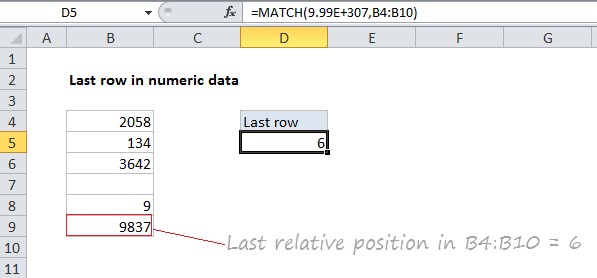
To get the last relative position (i.e. last row, last column) for numeric data (with or without empty cells), you can use the MATCH function with a so called “big number”. see example below:

Formula

=MATCH(bignum,range)
Explanation

In the example shown, the formula in E5 is:

=MATCH(9.99E+307,B4:B9)

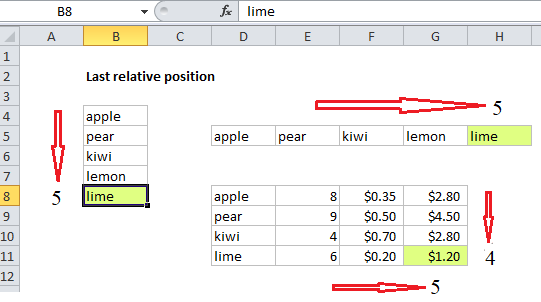
Last *relative* position, not row on worksheet

When building advanced formulas that create dynamic ranges, it’s often necessary to figure out the last location of data in a list. Depending on the data, this could be the last row with data, the last column with data, or the intersection of both. Note: we want the last *relative position* inside a given range, not the row number on the worksheet:
How this formula works

This formula uses the MATCH function in approximate match mode to locate the last numeric value in a range. Approximate match enabled by setting by the 3rd argument in MATCH to 1, or omitting this argument, which defaults to 1.

The lookup value is a so-called “big number” (sometimes abbreviated “bignum”) which is intentionally larger than any value that will appear in the range.

The result is that MATCH will “step back” to the last numeric value in the range, and return that position.

Note: this approach works fine with empty cells in the range, but is not reliable with mixed data that includes both numbers and text.

About bignum

The biggest number Excel can handle is 9.99999999999999E+307.

When using MATCH this way, you can use any large number that is guaranteed to be larger than any value in the range, for example:

=MATCH(1E+06,range) // 1 million
=MATCH(1E+09,range) // 1 billion
=MATCH(1E+12,range) // 1 trillion

The advantage to using 9.99E+307 or similar, is that it’s (1) a huge number and (2) recognizable as a placeholder for a “big number”.

Post navigation

Previous Post:

How to calculate project complete percentage in Excel

Next Post:

Popularly Used Excel Functions and their examples

Leave a Reply Cancel reply

Your email address will not be published. Required fields are marked *

Learn Basic Excel

Ribbon
Workbook
Worksheets
Format Cells
Find & Select
Sort & Filter
Templates
Print
Share
Protect
Keyboard Shortcuts

Categories

  • Charts
  • Data Analysis
  • Data Validation
  • Excel Functions
    • Cube Functions
    • Database Functions
    • Date and Time Functions
    • Engineering Functions
    • Financial Functions
    • Information Functions
    • Logical Functions
    • Lookup and Reference Functions
    • Math and Trig Functions
    • Statistical Functions
    • Text Functions
    • Web Functions
  • Excel VBA
  • Excel Video Tutorials
  • Formatting
  • Grouping
  • Others

Logical Functions

  • Nested IF function example in Excel
  • TRUE function: Description, Usage, Syntax, Examples and Explanation
  • IFNA function: Description, Usage, Syntax, Examples and Explanation
  • How to use Excel NOT Function
  • IF function: Description, Usage, Syntax, Examples and Explanation

Date Time

  • Calculate series of dates by workdays in Excel
  • Convert date to text in Excel
  • Convert Excel time to Unix time in Excel
  • How to calculate project start date based on end date in Excel
  • Get first Monday before any date in Excel

Grouping

  • Group arbitrary text values in Excel
  • If cell contains one of many things in Excel
  • Group numbers with VLOOKUP in Excel
  • Group times into 3 hour buckets in Excel
  • Map inputs to arbitrary values in Excel

General

  • How to Delete Cells, Row and Rows in Excel
  • How to password protect excel sheet?
  • AutoRecover file that was never saved in Excel
  • How to generate random number weighted probability in Excel
  • Mark Workbook as Final in Excel
© 2026 xlsoffice . All Right Reserved. | Teal Smiles | Abbreviations And Their Meaning