
Skip to content
Free Excel Tutorials
  • Home
  • Excel For Beginners
  • Excel Intermediate
  • Advanced Excel For Experts

Data Analysis

  • Calculate Conditional Percentile ‘IF’ in table in Excel
  • Conditional Formatting Icon Sets Examples in Excel
  • How to Create Thermometer Chart in Excel
  • Subtotal function in Excel
  • Use Data Form to input, edit and delete records in Excel

References

  • How to reference named range different sheet in Excel
  • Count rows with at least n matching values
  • Offset in Excel
  • How to get last column number in range in Excel
  • How to get first row number in range in Excel

Data Validations

  • Excel Data validation exists in list
  • Prevent invalid data entering in specific cells
  • Excel Data validation require unique number
  • Excel Data validation don’t exceed total
  • Data validation must not exist in list

How to randomly assign people to groups in Excel

by

To randomly assign people to groups or teams of a specific size, you can use a helper column with a value generated by the RAND function, together with a formula based on the RANK and ROUNDUP functions.

Formula

=ROUNDUP(RANK(A1,randoms)/size,0)
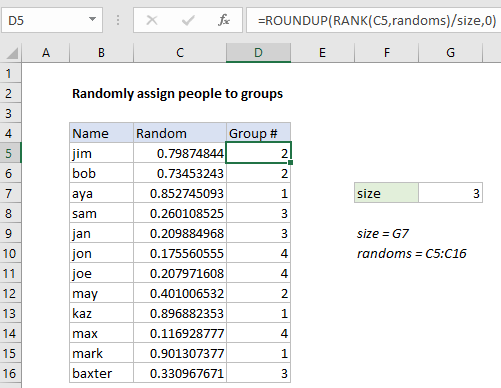
How to randomly assign people to groups in Excel

Explanation

In the example shown, the formula in D5 is:

=ROUNDUP(RANK(C5,randoms)/size,0)

which returns a group number for each name listed in column B, where “randoms” is the named range C5:C16, and “size” is the named range G5.

How this formula works

At the core of this solution is the RAND function, which is used to generate a random number in a helper column (column C in the example).

To assign a full set of random values in one step, select the range C5:C16, and type =RAND() in the formula bar. Then use the shortcut control + enter to enter the formula in all cells at once.

Note: the RAND function will keep generating random values every time a change is made the worksheet, so typically you will want to replace the results in column C with actual values using paste special to prevent changes after random values are assigned.

In column D, a group number is assigned with the following formula:

=ROUNDUP(RANK(C5,randoms)/size,0)

The RANK function is used to rank the value in C5 against all random values in the list. The result will be a number between 1 and the total number of people (12 in this example).

This result is then divided by “size”, which represents the desired group size (3 in the example), which then goes into the ROUNDUP function as number, with num_digits of zero. The ROUNDUP function returns a number rounded up to the next integer. This number represents assigned group number.

CEILING version

The CEILING function can be used instead of ROUNDUP. Like the ROUNDUP function, CEILING also rounds up but instead of rounding to a given number of decimal places, CEILING rounds to a given multiple.

=CEILING(RANK(C5,randoms)/size,1)

Post navigation

Previous Post:

How to calculate project complete percentage in Excel

Next Post:

Popularly Used Excel Functions and their examples

Leave a Reply Cancel reply

Your email address will not be published. Required fields are marked *

Learn Basic Excel

Ribbon
Workbook
Worksheets
Format Cells
Find & Select
Sort & Filter
Templates
Print
Share
Protect
Keyboard Shortcuts

Categories

  • Charts
  • Data Analysis
  • Data Validation
  • Excel Functions
    • Cube Functions
    • Database Functions
    • Date and Time Functions
    • Engineering Functions
    • Financial Functions
    • Information Functions
    • Logical Functions
    • Lookup and Reference Functions
    • Math and Trig Functions
    • Statistical Functions
    • Text Functions
    • Web Functions
  • Excel VBA
  • Excel Video Tutorials
  • Formatting
  • Grouping
  • Others

Logical Functions

  • Check multiple cells are equal in Excel
  • How to use Excel AND Function
  • Not Equal To ‘<>‘ operator in Excel
  • IF with wildcards in Excel
  • FALSE function: Description, Usage, Syntax, Examples and Explanation

Date Time

  • Convert text date dd/mm/yy to mm/dd/yy in Excel
  • Custom weekday abbreviation in Excel
  • Roll back weekday to Friday base on a particular date in Excel
  • DATEVALUE function: Description, Usage, Syntax, Examples and Explanation
  • ISOWEEKNUM function: Description, Usage, Syntax, Examples and Explanation

Grouping

  • How to randomly assign people to groups in Excel
  • Map inputs to arbitrary values in Excel
  • If cell contains one of many things in Excel
  • Group arbitrary text values in Excel
  • Calculate conditional mode with criteria in Excel

General

  • How to test a range for numbers in Excel
  • How to calculate percentage of total in Excel
  • How to generate random number between two numbers in Excel
  • How to create dynamic worksheet reference in Excel
  • How to Delete Cells, Row and Rows in Excel
© 2025 xlsoffice . All Right Reserved. | Teal Smiles | Abbreviations And Their Meaning