
NPV function: Description, Usage, Syntax, Examples and Explanation
What is NPV function in Excel?
NPV function is one of the Financial functions in Microsoft Excel that calculates the net present value of an investment by using a discount rate and a series of future payments (negative values) and income (positive values).
Syntax of NPV function
NPV(rate,value1,[value2],…)
The NPV function syntax has the following arguments:
- Rate: The rate of discount over the length of one period.
- Value1, value2, … Value1 is required, subsequent values are optional. 1 to 254 arguments representing the payments and income.
- Value1, value2, … must be equally spaced in time and occur at the end of each period.
- NPV uses the order of value1, value2, … to interpret the order of cash flows. Be sure to enter your payment and income values in the correct sequence.
- Arguments that are empty cells, logical values, or text representations of numbers, error values, or text that cannot be translated into numbers are ignored.
- If an argument is an array or reference, only numbers in that array or reference are counted. Empty cells, logical values, text, or error values in the array or reference are ignored.
NPV formula explanation
- The NPV investment begins one period before the date of the value1 cash flow and ends with the last cash flow in the list. The NPV calculation is based on future cash flows. If your first cash flow occurs at the beginning of the first period, the first value must be added to the NPV result, not included in the values arguments. For more information, see the examples below.
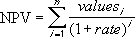
- If n is the number of cash flows in the list of values, the formula for NPV is:
- NPV is similar to the PV function (present value). The primary difference between PV and NPV is that PV allows cash flows to begin either at the end or at the beginning of the period. Unlike the variable NPV cash flow values, PV cash flows must be constant throughout the investment. For information about annuities and financial functions, see PV.
- NPV is also related to the IRR function (internal rate of return). IRR is the rate for which NPV equals zero: NPV(IRR(…), …) = 0.
Example of NPV function
Steps to follow:
1. Open a new Excel worksheet.
2. Copy data in the following table below and paste it in cell A1
Note: For formulas to show results, select them, press F2 key on your keyboard and then press Enter.
You can adjust the column widths to see all the data, if need be.
Example 1
| Data | Description | |
| 0.08 | Annual discount rate. This might represent the rate of inflation or the interest rate of a competing investment. | |
| -40000 | Initial cost of investment | |
| 8000 | Return from first year | |
| 9200 | Return from second year | |
| 10000 | Return from third year | |
| 12000 | Return from fourth year | |
| 14500 | Return from fifth year | |
| Formula | Description | Result |
| =NPV(A2, A4:A8)+A3 | Net present value of this investment | $1,922.06 |
| =NPV(A2, A4:A8, -9000)+A3 | Net present value of this investment, with a loss in the sixth year of 9000 | ($3,749.47) |
Example 2
| Data | Description | |
| 0.1 | Annual discount rate | |
| -10000 | Initial cost of investment one year from today | |
| 3000 | Return from first year | |
| 4200 | Return from second year | |
| 6800 | Return from third year | |
| Formula | Description | Result |
| =NPV(A2, A3, A4, A5, A6) | Net present value of this investment | $1,188.44 |
For more information about annuity functions, visit: