
Skip to content
Free Excel Tutorials
  • Home
  • Excel For Beginners
  • Excel Intermediate
  • Advanced Excel For Experts

Data Analysis

  • How to count table columns in Excel
  • How to create running total in an Excel Table
  • How to Create Gantt Chart in Excel
  • Excel Bar Chart
  • How To Load Analysis ToolPak in Excel

References

  • How to get address of named range in Excel
  • How to use Excel FORMULATEXT function
  • Two-way lookup with VLOOKUP in Excel
  • How to create dynamic named range with OFFSET in Excel
  • How to get last row in mixed data with blanks in Excel

Data Validations

  • Excel Data validation must contain specific text
  • Excel Data validation specific characters only
  • Excel Data validation unique values only
  • Prevent invalid data entering in specific cells
  • Excel Data validation date in next 30 days

How to use Excel HYPERLINK Function

by

This Excel tutorial explains how to use the HYPERLINK function with syntax and examples.

Excel HYPERLINK Function Description

The Microsoft Excel HYPERLINK function creates a shortcut to a file or Internet address.

The HYPERLINK function is a built-in function in Excel that is categorized as a Lookup/Reference Function. The HYPERLINK function can be entered as part of a formula in a cell of a worksheet.
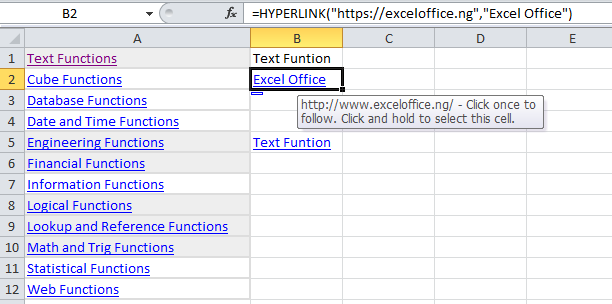
Explanation: The Excel HYPERLINK function returns a hyperlink from a given destination and “friendly name”. You can use HYPERLINK to construct a clickable hyperlink with a formula. The HYPERLINK function can build links to workbook locations, pages on the internet, or to files on network servers.

Syntax

HYPERLINK (link_location, [friendly_name])

Return

A clickable hyperlink

Post navigation

Previous Post:

VLOOKUP without #N/A error in Excel

Next Post:

Manipulating text strings using Left, Mid, Right, Len, Substitute in Excel

Leave a Reply Cancel reply

Your email address will not be published. Required fields are marked *

Learn Basic Excel

Ribbon
Workbook
Worksheets
Format Cells
Find & Select
Sort & Filter
Templates
Print
Share
Protect
Keyboard Shortcuts

Categories

  • Charts
  • Data Analysis
  • Data Validation
  • Excel Functions
    • Cube Functions
    • Database Functions
    • Date and Time Functions
    • Engineering Functions
    • Financial Functions
    • Information Functions
    • Logical Functions
    • Lookup and Reference Functions
    • Math and Trig Functions
    • Statistical Functions
    • Text Functions
    • Web Functions
  • Excel VBA
  • Excel Video Tutorials
  • Formatting
  • Grouping
  • Others

Logical Functions

  • IFNA function: Description, Usage, Syntax, Examples and Explanation
  • How to use Excel OR Function
  • Invoice status with nested if in Excel
  • How to return blank in place of #DIV/0! error in Excel
  • IFS function: Description, Usage, Syntax, Examples and Explanation

Date Time

  • Calculate expiration date in Excel
  • Custom weekday abbreviation in Excel
  • How to calculate most recent day of week in Excel
  • Get days between dates ignoring years in Excel
  • How to calculate Quarter of Date in Excel

Grouping

  • Categorize text with keywords in Excel
  • If cell contains one of many things in Excel
  • Group numbers at uneven intervals in Excel
  • Group times into 3 hour buckets in Excel
  • Map inputs to arbitrary values in Excel

General

  • Flash Fill in Excel
  • Convert column number to letter in Excel
  • Index and match on multiple columns in Excel
  • Freeze and Unfreeze Panes in Excel
  • Find Most Frequently Occurring Word in Excel Worksheet
© 2026 xlsoffice . All Right Reserved. | Teal Smiles | Abbreviations And Their Meaning