
Skip to content
Free Excel Tutorials
  • Home
  • Excel For Beginners
  • Excel Intermediate
  • Advanced Excel For Experts

Data Analysis

  • Randomize/ Shuffle List in Excel
  • How to Create Area Chart in Excel
  • Remove Duplicates Example in Excel
  • How to calculate average last N values in a table in Excel
  • How to create dynamic reference table name in Excel

References

  • How to get last column number in range in Excel
  • Excel Advanced Lookup using Index and Match Functions
  • Count rows that contain specific values in Excel
  • How to get address of last cell in range in Excel
  • How to use Excel INDIRECT Function

Data Validations

  • Excel Data validation must not contain
  • Excel Data validation must contain specific text
  • Excel Data validation require unique number
  • Excel Data validation whole percentage only
  • Excel Data validation number multiple 100

How to Check If A Cell Contains Specific Text in Excel

by

To check if a cell contains specific text, you can use the ISNUMBER and the SEARCH function in Excel.

The ISNUMBER functions is used to check for a numeric value and the  SEARCH function returns the location of a substring in a string.

There’s no CONTAINS function in Excel.

1. To find the position of a substring in a text string, use the SEARCH function.
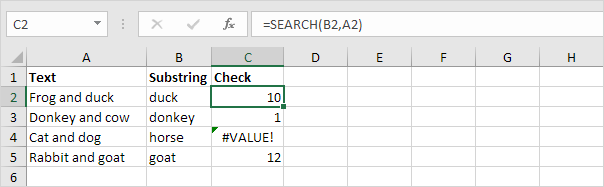
Explanation: “duck” found at position 10, “donkey” found at position 1, cell A4 does not contain the word “horse” and “goat” found at position 12.

2. Add the ISNUMBER function. The ISNUMBER function returns TRUE if a cell contains a number, and FALSE if not.
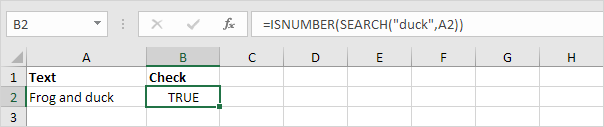
Explanation: cell A2 contains the word “duck”, cell A3 contains the word “donkey”, cell A4 does not contain the word “horse” and cell A5 contains the word “goat”.

3. You can also check if a cell contains specific text, without displaying the substring. Make sure to enclose the substring in double quotation marks.
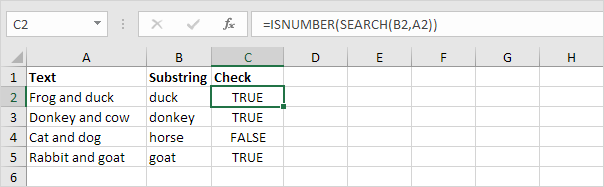
4. To perform a case-sensitive search, replace the SEARCH function with the FIND function.
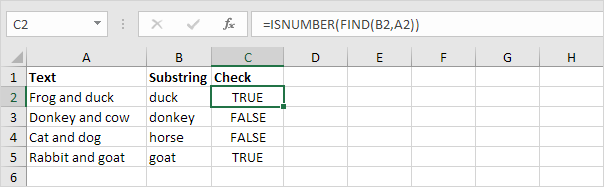
Explanation: the formula in cell C3 returns FALSE now. Cell A3 does not contain the word “donkey” but contains the word “Donkey”.

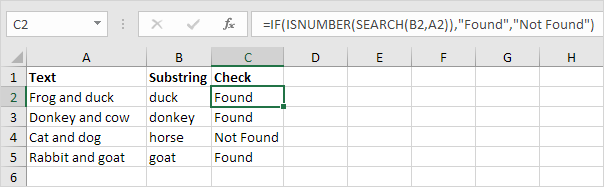
5. Add the IF function. The formula below (case-insensitive) returns “Found” if a cell contains specific text, and “Not Found” if not.
6. You can also use the IF and the COUNTIF function in Excel to check if a cell contains specific text. However, the COUNTIF function is always case-insensitive.
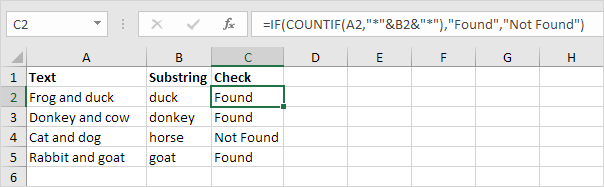
Explanation: the formula in cell C2 reduces to =IF(COUNTIF(A2,”*duck*”),”Found”,”Not Found”). An asterisk (*) matches a series of zero or more characters. Visit our page about the COUNTIF function to learn all you need to know about this powerful function.

Post navigation

Previous Post:

COSH function: Description, Usage, Syntax, Examples and Explanation

Next Post:

Excel Data validation require unique number

Leave a Reply Cancel reply

Your email address will not be published. Required fields are marked *

Learn Basic Excel

Ribbon
Workbook
Worksheets
Format Cells
Find & Select
Sort & Filter
Templates
Print
Share
Protect
Keyboard Shortcuts

Categories

  • Charts
  • Data Analysis
  • Data Validation
  • Excel Functions
    • Cube Functions
    • Database Functions
    • Date and Time Functions
    • Engineering Functions
    • Financial Functions
    • Information Functions
    • Logical Functions
    • Lookup and Reference Functions
    • Math and Trig Functions
    • Statistical Functions
    • Text Functions
    • Web Functions
  • Excel VBA
  • Excel Video Tutorials
  • Formatting
  • Grouping
  • Others

Logical Functions

  • TRUE function: Description, Usage, Syntax, Examples and Explanation
  • How to use Excel FALSE Function
  • How to use IFS function in Excel
  • IFERROR function: Description, Usage, Syntax, Examples and Explanation
  • How to use Excel AND Function

Date Time

  • NOW function: Description, Usage, Syntax, Examples and Explanation
  • Convert date to Julian format in Excel
  • Get days between dates ignoring years in Excel
  • Display Date is workday in Excel
  • How to join date and text together in Excel

Grouping

  • Group numbers with VLOOKUP in Excel
  • If cell contains one of many things in Excel
  • Calculate conditional mode with criteria in Excel
  • How to randomly assign data to groups in Excel
  • Categorize text with keywords in Excel

General

  • How to create dynamic worksheet reference in Excel
  • How to fill cell ranges with random number from fixed set of options in Excel
  • How to create dynamic named range with INDEX in Excel
  • How to calculate percent variance in Excel
  • How to calculate project complete percentage in Excel
© 2026 xlsoffice . All Right Reserved. | Teal Smiles | Abbreviations And Their Meaning