
Skip to content
Free Excel Tutorials
  • Home
  • Excel For Beginners
  • Excel Intermediate
  • Advanced Excel For Experts

Data Analysis

  • Error Bars in Excel
  • Conditional Formatting Icon Sets Examples in Excel
  • How to do a t-Test in Excel?
  • Conditional Formatting New Rule with Formulas in Excel
  • How to Create Area Chart in Excel

References

  • How to get last row in numeric data in Excel
  • Perform case-sensitive Lookup in Excel
  • Count rows with at least n matching values
  • Multi-criteria lookup and transpose in Excel
  • How to get relative row numbers in a range in Excel

Data Validations

  • Excel Data validation only dates between
  • Excel Data validation must contain specific text
  • Excel Data validation allow uppercase only
  • Excel Data validation no punctuation
  • Excel Data validation with conditional list

How to use Excel ROW Function

by

This Excel tutorial explains how to use the ROW function with syntax and examples.

Excel ROW Function Description

Microsoft Excel ROW function returns the row number of a cell reference.

The ROW function is a built-in function in Excel that is categorized as a Lookup/Reference Function. The ROW function can be entered as part of a formula in a cell of a worksheet.
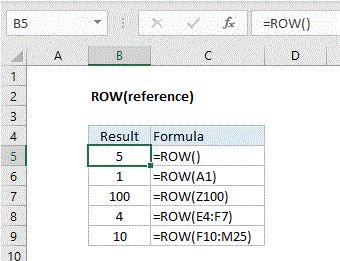
Explanation: The Excel ROW function returns the row number for a reference. For example, ROW(C5) returns 5, since C5 is the fifth row in the spreadsheet. When no reference is provided, ROW returns the row number of the cell which contains the formula.

ROW function is used to get the row number for a cell reference or a range. For example:

=ROW(A3) // returns 3
=ROW(D5) // returns 5
=ROW(F10:J15) // returns 10

Syntax

The syntax for the ROW function in Microsoft Excel is:

ROW( [reference] )

Arguments

reference
Optional. It is a reference to a cell or range of cells.

Returns

The ROW function returns a numeric value.

Note: If the reference parameter is omitted, it assumes that the reference is the cell address in which the ROW function has been entered in.

Post navigation

Previous Post:

VLOOKUP without #N/A error in Excel

Next Post:

Manipulating text strings using Left, Mid, Right, Len, Substitute in Excel

Leave a Reply Cancel reply

Your email address will not be published. Required fields are marked *

Learn Basic Excel

Ribbon
Workbook
Worksheets
Format Cells
Find & Select
Sort & Filter
Templates
Print
Share
Protect
Keyboard Shortcuts

Categories

  • Charts
  • Data Analysis
  • Data Validation
  • Excel Functions
    • Cube Functions
    • Database Functions
    • Date and Time Functions
    • Engineering Functions
    • Financial Functions
    • Information Functions
    • Logical Functions
    • Lookup and Reference Functions
    • Math and Trig Functions
    • Statistical Functions
    • Text Functions
    • Web Functions
  • Excel VBA
  • Excel Video Tutorials
  • Formatting
  • Grouping
  • Others

Logical Functions

  • AND function: Description, Usage, Syntax, Examples and Explanation
  • How to use Excel TRUE Function
  • SWITCH function example in Excel
  • How to use IFS function in Excel
  • How to return blank in place of #DIV/0! error in Excel

Date Time

  • WEEKNUM function: Description, Usage, Syntax, Examples and Explanation
  • Calculate total hours that fall between two times in Excel
  • Get first day of previous month in Excel
  • Extract date from a date and time in Excel
  • Add workdays no weekends in Excel

Grouping

  • Group numbers at uneven intervals in Excel
  • Categorize text with keywords in Excel
  • Calculate conditional mode with criteria in Excel
  • Group times into unequal buckets in Excel
  • Group arbitrary text values in Excel

General

  • 231 Keyboard Shortcut Keys In Excel
  • Find Most Frequently Occurring Word in Excel Worksheet
  • Advanced Number Formats in Excel
  • How to calculate profit margin percentage in Excel
  • How to generate random date between two dates in Excel
© 2026 xlsoffice . All Right Reserved. | Teal Smiles | Abbreviations And Their Meaning