
Skip to content
Free Excel Tutorials
  • Home
  • Excel For Beginners
  • Excel Intermediate
  • Advanced Excel For Experts

Data Analysis

  • Calculate Conditional Percentile ‘IF’ in table in Excel
  • Add Outline to Data in Excel
  • How to Create One and Two Variable Data Tables in Excel
  • How to create Checklist in Excel
  • How To Compare Two Lists in Excel

References

  • Last row number in range
  • How to get address of named range in Excel
  • Offset in Excel
  • How to get last row in text data in Excel
  • How to get first column number in range in Excel

Data Validations

  • Data validation must not exist in list
  • Excel Data validation with conditional list
  • Excel Data validation don’t exceed total
  • Excel Data validation must not contain
  • Excel Data validation number multiple 100

How to abbreviate names or words in Excel

by

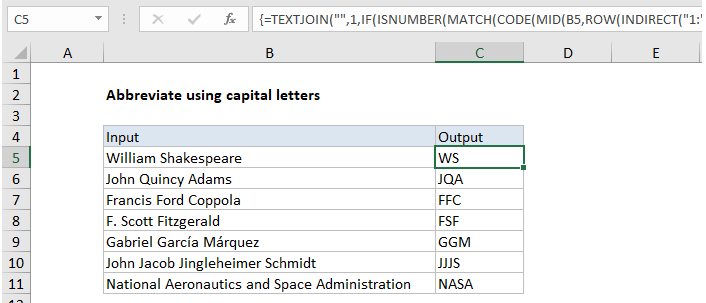
To abbreviate text that contains capital letters, you can try this array formula based on the TEXTJOIN function, which is new in Excel 2016. You can use this approach to create initials from names, or to create acronyms. Only capital letters will survive this formula, so the source text must include capitalized words. You can use the PROPER function to capitalize words if needed. See example below;

 Formula

=TEXTJOIN("",1,IF(ISNUMBER(MATCH(CODE(MID(A1,ROW(INDIRECT("1:"&LEN(A1))),1)),ROW(INDIRECT("63:90")),0)),MID(A1,ROW(INDIRECT("1:"&LEN(A1))),1),""))
How to abbreviate names or words in Excel

Explanation

In the example shown, the formula in C5 is:

=TEXTJOIN("",1,IF(ISNUMBER(MATCH(CODE(MID(B5,ROW(INDIRECT("1:"&LEN(B5))),1)),ROW(INDIRECT("63:90")),0)),MID(B5,ROW(INDIRECT("1:"&LEN(B5))),1),""))

How this formula works

Working from the inside out, the MID function is used to cast the string into an array of individual letters:

MID(B5,ROW(INDIRECT("1:"&LEN(B5))),1)

In this part of the formula, MID, ROW, INDIRECT, and LEN are used to convert a string to an array or letters, as described here.

MID returns an array of all characters in the text.

{“W”;”i”;”l”;”l”;”i”;”a”;”m”;” “;”S”;”h”;”a”;”k”;”e”;”s”;”p”;”e”;”a”;”r”;”e”}

This array is fed into the CODE function, which outputs an array of numeric ascii codes, one for each letter.

Separately, ROW and INDIRECT are used to create another numeric array:

ROW(INDIRECT("63:90")

This is the clever bit. The numbers 63 to 90 correspond to the ascii codes for all capital letters between A-Z.  This array goes into the MATCH function as the lookup array, and the original array of ascii codes is provided as the lookup value.

MATCH then returns either a number (based on a position) or the #N/A error. Numbers represent capital letters, so the ISNUMBER function is used together with the IF function to filter results. Only characters whose ascii code is between 63 and 90 will make into the final array, which is then reassembled with the TEXTJOIN function to create the final abbreviation or acronym.

Post navigation

Previous Post:

DECIMAL function: Description, Usage, Syntax, Examples and Explanation

Next Post:

AVERAGE function: Description, Usage, Syntax, Examples and Explanation

Leave a Reply Cancel reply

Your email address will not be published. Required fields are marked *

Learn Basic Excel

Ribbon
Workbook
Worksheets
Format Cells
Find & Select
Sort & Filter
Templates
Print
Share
Protect
Keyboard Shortcuts

Categories

  • Charts
  • Data Analysis
  • Data Validation
  • Excel Functions
    • Cube Functions
    • Database Functions
    • Date and Time Functions
    • Engineering Functions
    • Financial Functions
    • Information Functions
    • Logical Functions
    • Lookup and Reference Functions
    • Math and Trig Functions
    • Statistical Functions
    • Text Functions
    • Web Functions
  • Excel VBA
  • Excel Video Tutorials
  • Formatting
  • Grouping
  • Others

Logical Functions

  • Nested IF function example in Excel
  • Check multiple cells are equal in Excel
  • OR function Examples in Excel
  • NOT function: Description, Usage, Syntax, Examples and Explanation
  • IF with boolean logic in Excel

Date Time

  • Next biweekly payday from date in Excel
  • How to calculate Next working/business day in Excel
  • Add months to date in Excel
  • How to calculate nth day of year in Excel
  • YEARFRAC function: Description, Usage, Syntax, Examples and Explanation

Grouping

  • Calculate conditional mode with criteria in Excel
  • Group times into unequal buckets in Excel
  • If cell contains one of many things in Excel
  • Group numbers at uneven intervals in Excel
  • Running count group by n size in Excel

General

  • Subtotal invoices by age in Excel
  • Customize Ribbon In Excel
  • How to fill cell ranges with random number from fixed set of options in Excel
  • Check if range contains a value not in another range in Excel
  • List worksheet index numbers in Excel
© 2026 xlsoffice . All Right Reserved. | Teal Smiles | Abbreviations And Their Meaning