
Skip to content
Free Excel Tutorials
  • Home
  • Excel For Beginners
  • Excel Intermediate
  • Advanced Excel For Experts

Data Analysis

  • How to add Trendline to a chart in Excel
  • Excel Frequency Function Example
  • Calculate Conditional Percentile ‘IF’ in table in Excel
  • How to Sort by Color in Excel
  • How to calculate current stock or inventory in Excel

References

  • Complete List of Excel Lookup and Reference Functions, References and Examples
  • Vlookup Examples in Excel
  • How to get first row number in range in Excel
  • How to get last row in numeric data in Excel
  • How to get address of named range in Excel

Data Validations

  • Excel Data validation allow uppercase only
  • Excel Data validation no punctuation
  • Prevent invalid data entering in specific cells
  • Excel Data validation with conditional list
  • Excel Data validation don’t exceed total

COUNTIFS with multiple criteria and OR logic in Excel

by

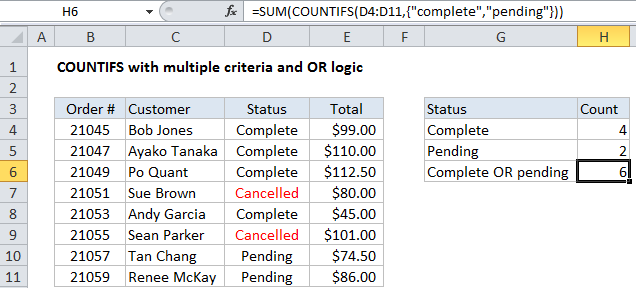
This tutorial shows how to COUNTIFS with multiple criteria and OR logic in Excel using the example below;

Formula

=SUM(COUNTIFS(range,{"red","blue","green"}))
Explanation

To count with multiple criteria and OR logic, you can use the COUNTIFS function with an array constant. In the example shown, the formula in H6 is:

=SUM(COUNTIFS(D4:D11,{"complete","pending"}))

How this formula works

By default, the COUNTIFS function applies AND logic. When you supply multiple conditions, all conditions must match in order to generate a count.

One solution is to supply multiple criteria in an array constant like this:

{"complete","pending"}

This will cause COUNTIFS to return two results: a count for “complete” and a count for “pending”, packaged in an array result like this:

{4,2}

To get a final total, we wrap COUNTIFS inside SUM. The SUM function then sums all items in the array and returns the result.

Adding another OR criteria

You can add one additional criteria to this formula, but you’ll need to use a single column arrayfor one criteria and a single row array for the other. So, for example, to count orders that are “Complete” or “Pending”, for either “Andy Garcia” or “Bob Jones”, you can use:

=SUM(COUNTIFS(D4:D11,{"complete","pending"},C4:C11,{"Bob Jones";"Andy Garcia"}))

Note we use a semi-colon for the second array constant, which creates a vertical array. This works because Excel “pairs” elements in the two array constants, and returns a two dimensional array of results inside SUM like this:

=SUM({1,0;1,0})

If you have more than two criteria, consider a SUMPRODUCT formula as described here.

Cell reference for criteria

To use a cell reference for criteria, you can use an array formula like this:

={SUM(COUNTIFS(range1,range2))}

Where range1 is the criteria range, and range2 contains criteria.

Wildcards and double-counting

COUNTIF and COUNTIFS support wildcards, but you need to be careful not to double count when you have multiple “contains” conditions with OR logic. See this example for more information

Post navigation

Previous Post:

How to use Excel CHOOSE Function

Next Post:

Customize Ribbon In Excel

Leave a Reply Cancel reply

Your email address will not be published. Required fields are marked *

Learn Basic Excel

Ribbon
Workbook
Worksheets
Format Cells
Find & Select
Sort & Filter
Templates
Print
Share
Protect
Keyboard Shortcuts

Categories

  • Charts
  • Data Analysis
  • Data Validation
  • Excel Functions
    • Cube Functions
    • Database Functions
    • Date and Time Functions
    • Engineering Functions
    • Financial Functions
    • Information Functions
    • Logical Functions
    • Lookup and Reference Functions
    • Math and Trig Functions
    • Statistical Functions
    • Text Functions
    • Web Functions
  • Excel VBA
  • Excel Video Tutorials
  • Formatting
  • Grouping
  • Others

Logical Functions

  • OR function: Description, Usage, Syntax, Examples and Explanation
  • Extract multiple matches into separate rows in Excel
  • IF with wildcards in Excel
  • Return blank if in Excel
  • Check multiple cells are equal in Excel

Date Time

  • Add decimal hours to time in Excel
  • How to calculate next anniversary date or birthday in Excel
  • Calculate retirement date in Excel
  • Convert Unix time stamp to Excel date
  • How to get same date next year or previous year in Excel

Grouping

  • Map inputs to arbitrary values in Excel
  • Group times into unequal buckets in Excel
  • Running count group by n size in Excel
  • How to randomly assign people to groups in Excel
  • Map text to numbers in Excel

General

  • How to calculate decrease by percentage in Excel
  • Delete Blank Rows at Once in Excel
  • How to generate random number between two numbers in Excel
  • How to choose page/paper size in Excel before Printing
  • Sum by group in Excel
© 2026 xlsoffice . All Right Reserved. | Teal Smiles | Abbreviations And Their Meaning