
Skip to content
Free Excel Tutorials
  • Home
  • Excel For Beginners
  • Excel Intermediate
  • Advanced Excel For Experts

Data Analysis

  • How To Create Pareto Chart in Excel
  • Excel Line Chart
  • How to do a t-Test in Excel?
  • How To Remove Duplicates In Excel Column Or Row?
  • How to Use Solver Tool in Excel

References

  • How to use Excel ROW Function
  • Find Closest Match in Excel Using INDEX, MATCH, ABS and MIN functions
  • How to use Excel COLUMN Function
  • Extract all partial matches in Excel
  • How to use Excel TRANSPOSE Function

Data Validations

  • Excel Data validation with conditional list
  • Excel Data validation no punctuation
  • Excel Data validation must not contain
  • Excel Data validation exists in list
  • Excel Data validation unique values only

How to use Excel INDEX Function

by

This Excel tutorial explains how to use the INDEX function with syntax and examples.

Excel INDEX Function Description

The Microsoft Excel INDEX function returns a value in a table based on the intersection of a row and column position within that table. The first row in the table is row 1 and the first column in the table is column 1.

The INDEX function is a built-in function in Excel that is categorized as a Lookup/Reference Function. The INDEX function can be entered as part of a formula in a cell of a worksheet.
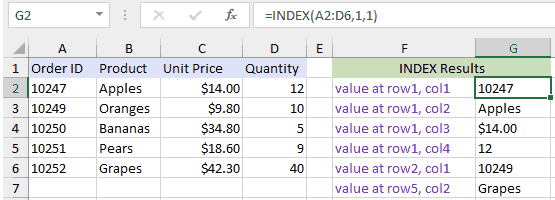
Explanation: Based on the example above, the INDEX would return:

=INDEX(A2:D6,1,1)
Result: 10247     'Intersection of row1 and col1 (cell A2)

=INDEX(A2:D6,1,2)
Result: "Apples"  'Intersection of row1 and col2 (cell B2)

=INDEX(A2:D6,1,3)
Result: $14.00    'Intersection of row1 and col3 (cell C2)

=INDEX(A2:D6,1,4)
Result: 12        'Intersection of row1 and col4 (cell D2)

=INDEX(A2:D6,2,1)
Result: 10249     'Intersection of row2 and col1 (cell A3)

=INDEX(A2:D6,5,2)
Result: Grapes    'Intersection of row5 and col2 (cell B6)

Return

The value at a given location.

Syntax

INDEX (array, row_num, [col_num], [area_num])

Arguments

array – A range of cells, or an array constant.
row_num – The row position in the reference or array.
col_num – [optional] The column position in the reference or array.
area_num – [optional] The range in reference that should be used.

Post navigation

Previous Post:

VLOOKUP without #N/A error in Excel

Next Post:

Manipulating text strings using Left, Mid, Right, Len, Substitute in Excel

Leave a Reply Cancel reply

Your email address will not be published. Required fields are marked *

Learn Basic Excel

Ribbon
Workbook
Worksheets
Format Cells
Find & Select
Sort & Filter
Templates
Print
Share
Protect
Keyboard Shortcuts

Categories

  • Charts
  • Data Analysis
  • Data Validation
  • Excel Functions
    • Cube Functions
    • Database Functions
    • Date and Time Functions
    • Engineering Functions
    • Financial Functions
    • Information Functions
    • Logical Functions
    • Lookup and Reference Functions
    • Math and Trig Functions
    • Statistical Functions
    • Text Functions
    • Web Functions
  • Excel VBA
  • Excel Video Tutorials
  • Formatting
  • Grouping
  • Others

Logical Functions

  • How to use Excel FALSE Function
  • How to use Excel NOT Function
  • Invoice status with nested if in Excel
  • How to use Excel OR Function
  • IF with wildcards in Excel

Date Time

  • Calculate days remaining in Excel
  • Convert decimal hours to Excel time
  • Add workdays no weekends in Excel
  • Get day name from date in Excel
  • How to determine year is a leap year in Excel

Grouping

  • Categorize text with keywords in Excel
  • Map text to numbers in Excel
  • Group arbitrary text values in Excel
  • Group times into unequal buckets in Excel
  • If cell contains one of many things in Excel

General

  • Customize Ribbon In Excel
  • How to get amount with percentage in Excel
  • How to set or clear a print area in Excel Worksheet
  • Basic error trapping example in Excel
  • Count cells that do not contain errors in Excel
© 2026 xlsoffice . All Right Reserved. | Teal Smiles | Abbreviations And Their Meaning