
Skip to content
Free Excel Tutorials
  • Home
  • Excel For Beginners
  • Excel Intermediate
  • Advanced Excel For Experts

Data Analysis

  • Create Scatter Chart in Excel
  • Filter Data Based on Date in Excel
  • How to sum a total in multiple Excel tables
  • Working With Tables in Excel
  • How to Create One and Two Variable Data Tables in Excel

References

  • How to get last row in text data in Excel
  • Two-column Lookup in Excel
  • Multi-criteria lookup and transpose in Excel
  • Count unique text values with criteria
  • Two-way lookup with VLOOKUP in Excel

Data Validations

  • Excel Data validation date in next 30 days
  • Excel Data validation allow weekday only
  • Excel Data validation unique values only
  • Excel Data validation whole percentage only
  • Prevent invalid data entering in specific cells

DATE function: Description, Usage, Syntax, Examples and Explanation

by

What is DATE function in Excel?

DATE function is one of Date and Time functions in Microsoft Office Excel that when you need to take three separate values and combine them to form a date.
Note: Microsoft Excel DATE function returns the serial date value for a date.

Syntax of DATE function

The syntax for the DATE function in Microsoft Excel is:

DATE( year, month, day )

DATE formula explanation

Year: A number that is between one and four digits that represents the year.
Month: A number representing the month value. If the month value is greater than 12, then every 12 months will add 1 year to the year value. This means that DATE(2016,13,4) is equal to DATE(2017,1,4) and DATE(2016,25,4) is equal to DATE(2018,1,4) … and so on.
Day: A number representing the day value. If the day value is greater than the number of days in the month specified, then the appropriate number of months will be added to the month value.

Returns

The DATE function returns a serial date value. A serial date is how Excel stores dates internally and it represents the number of days since January 1, 1900.
If the year is greater than 9999, the DATE function will return the #NUM! error.

Note

  • If the year is between 0 and 1899, the year value is added to 1900 to determine the year.
  • If the year is between 1900 and 9999, the DATE function uses the year value as the year.

 Examples of DATE function

The example illustrated below shows DATE function result as an unformatted serial date in column D and column E show you the result as a formatted date in  mm/d/yyyy.
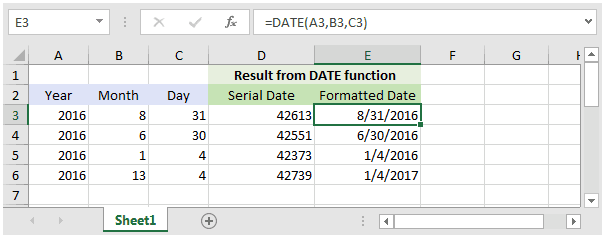
Based on the Excel spreadsheet above, the following DATE examples would return:

=DATE(A3,B3,C3)
Result: 42613  'Which can be formatted as "8/31/2016"

=DATE(A4,B4,C4)
Result: 42551  'Which can be formatted as "6/30/2016"

=DATE(A5,B5,C5)
Result: 42373  'Which can be formatted as "1/4/2016"

=DATE(A6,B6,C6)
Result: 42739  'Which can be formatted as "1/4/2017"

Notice in the last example =DATE(B6,B6,C6) that the month value is 13 and larger than 12. In this example, 1 would be added to the year making it 2017. And the remainder of 1 would used as the month value.

Post navigation

Previous Post:

How to generate random date between two dates in Excel

Leave a Reply Cancel reply

Your email address will not be published. Required fields are marked *

Learn Basic Excel

Ribbon
Workbook
Worksheets
Format Cells
Find & Select
Sort & Filter
Templates
Print
Share
Protect
Keyboard Shortcuts

Categories

  • Charts
  • Data Analysis
  • Data Validation
  • Excel Functions
    • Cube Functions
    • Database Functions
    • Date and Time Functions
    • Engineering Functions
    • Financial Functions
    • Information Functions
    • Logical Functions
    • Lookup and Reference Functions
    • Math and Trig Functions
    • Statistical Functions
    • Text Functions
    • Web Functions
  • Excel VBA
  • Excel Video Tutorials
  • Formatting
  • Grouping
  • Others

Logical Functions

  • How to use Excel AND Function
  • IF with boolean logic in Excel
  • IFNA function: Description, Usage, Syntax, Examples and Explanation
  • Return blank if in Excel
  • Excel If, Nested If, And/Or Criteria Examples

Date Time

  • Extract time from a date and time in Excel
  • How to calculate next scheduled event in Excel
  • NOW function: Description, Usage, Syntax, Examples and Explanation
  • MONTH function: Description, Usage, Syntax, Examples and Explanation
  • Calculate total hours that fall between two times in Excel

Grouping

  • Running count group by n size in Excel
  • How to randomly assign data to groups in Excel
  • Group times into 3 hour buckets in Excel
  • If cell contains one of many things in Excel
  • Map inputs to arbitrary values in Excel

General

  • Excel Ribbon Quick Overview For Beginners
  • AutoFit Column Width, AutoFit Row Height in Excel
  • How to count total number of cells in a rectangular range in Excel
  • How to create dynamic named range with INDEX in Excel
  • Transpose: Switch ‘Rows to Columns’ or ‘Columns to Rows’ in Excel
© 2026 xlsoffice . All Right Reserved. | Teal Smiles | Abbreviations And Their Meaning