

Skip to content
Free Excel Tutorials
  • Home
  • Excel For Beginners
  • Excel Intermediate
  • Advanced Excel For Experts

Data Analysis

  • How to create a Histogram in Excel
  • How to create dynamic reference table name in Excel
  • How To Sort One Column or Multiple Columns in Excel
  • How to calculate correlation coefficient Correlation in Excel
  • Working With Tables in Excel

References

  • How to use Excel VLOOKUP Function
  • Count rows that contain specific values in Excel
  • How to use Excel MATCH Function
  • Complete List of Excel Lookup and Reference Functions, References and Examples
  • Extract all partial matches in Excel

Data Validations

  • Excel Data validation don’t exceed total
  • Excel Data validation require unique number
  • Excel Data validation exists in list
  • Excel Data validation allow uppercase only
  • Prevent invalid data entering in specific cells

Excel Ribbon Quick Overview For Beginners

by

Ribbon in Excel Function

Excel ribbon is a strip of buttons and icons located above the work area that was first introduced in Excel 2007 version. The ribbon replaces the menus and toolbars found in earlier versions of Excel.

Working with and Understanding Excel Ribbon

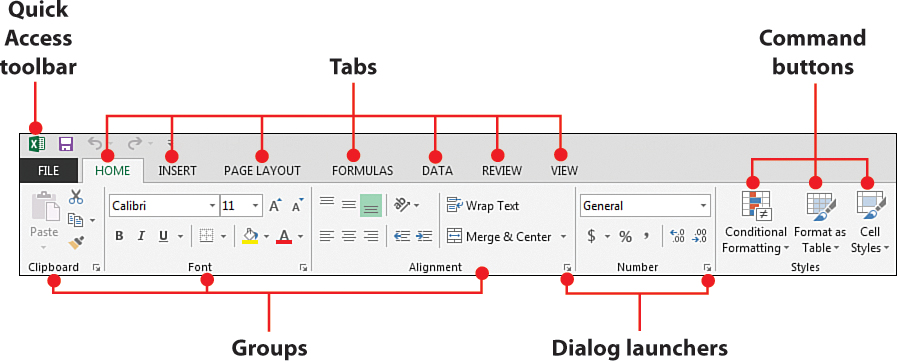
Above the ribbon are a number of tabs, such as File, Home, Insert, Page layout, Formulas, Data, Review and View as shown in the screenshot below:
Drilling down on the ribbon:

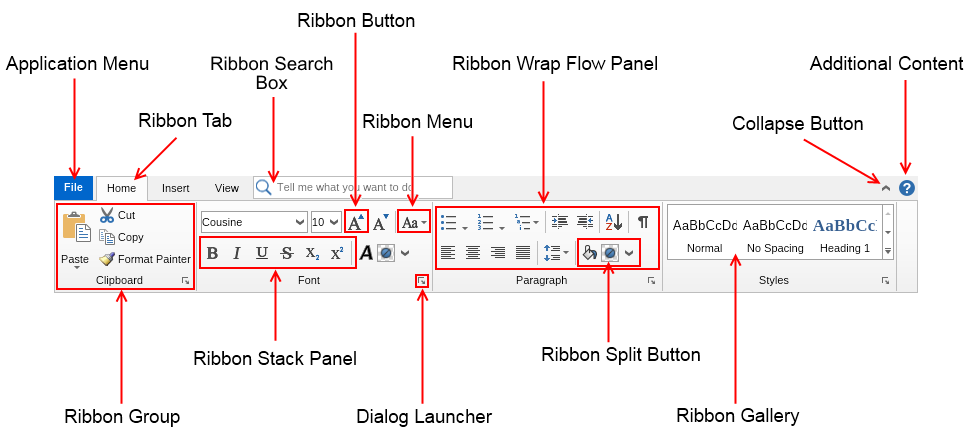
For every tab a computer user clicks,  the ribbon associated to it opens. And the ribbons are segmented  into groups. Depending on the version of excel that you are working with;  there is only a slight difference between 2007 version and 2010 -2019 versions.

File tab replaced office button in 2007.
Post navigation

Previous Post:

VLOOKUP without #N/A error in Excel

Next Post:

Manipulating text strings using Left, Mid, Right, Len, Substitute in Excel

Leave a Reply Cancel reply

Your email address will not be published. Required fields are marked *

Learn Basic Excel

Ribbon
Workbook
Worksheets
Format Cells
Find & Select
Sort & Filter
Templates
Print
Share
Protect
Keyboard Shortcuts

Categories

  • Charts
  • Data Analysis
  • Data Validation
  • Excel Functions
    • Cube Functions
    • Database Functions
    • Date and Time Functions
    • Engineering Functions
    • Financial Functions
    • Information Functions
    • Logical Functions
    • Lookup and Reference Functions
    • Math and Trig Functions
    • Statistical Functions
    • Text Functions
    • Web Functions
  • Excel VBA
  • Excel Video Tutorials
  • Formatting
  • Grouping
  • Others

Logical Functions

  • Return blank if in Excel
  • SWITCH function: Description, Usage, Syntax, Examples and Explanation
  • Invoice status with nested if in Excel
  • How to use Excel TRUE Function
  • OR function: Description, Usage, Syntax, Examples and Explanation

Date Time

  • Get days, months, and years between dates in Excel
  • How to calculate Quarter of Date in Excel
  • Convert date to text in Excel
  • Get work hours between dates in Excel
  • Two ways to sum time over 30 minutes in Excel

Grouping

  • Categorize text with keywords in Excel
  • Group numbers at uneven intervals in Excel
  • How to randomly assign data to groups in Excel
  • Map inputs to arbitrary values in Excel
  • Calculate conditional mode with criteria in Excel

General

  • Subtotal by color in Excel
  • Find Most Frequently Occurring Word in Excel Worksheet
  • Automatically fill series of cells in Excel using AutoFill
  • How to create dynamic named range with INDEX in Excel
  • Excel Default Templates
© 2026 xlsoffice . All Right Reserved. | Teal Smiles | Abbreviations And Their Meaning