
Skip to content
Free Excel Tutorials
  • Home
  • Excel For Beginners
  • Excel Intermediate
  • Advanced Excel For Experts

Data Analysis

  • How to calculate average last N values in a table in Excel
  • How to Create Gantt Chart in Excel
  • How to Use Solver Tool in Excel
  • How To Create Frequency Distribution in Excel
  • Get column index in Excel Table

References

  • How to use Excel TRANSPOSE Function
  • How to use Excel COLUMN Function
  • Count rows that contain specific values in Excel
  • Offset in Excel
  • How to get address of first cell in range in Excel

Data Validations

  • Excel Data validation must begin with
  • Excel Data validation whole percentage only
  • Excel Data validation no punctuation
  • How To Create Drop-down List in Excel
  • Excel Data validation exists in list

Highlight dates greater than in Excel

by

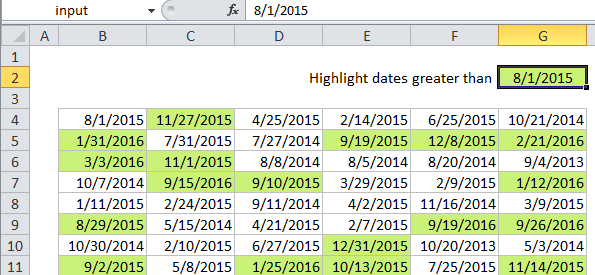
This tutorial shows how to Highlight dates greater than in Excel using the example below;

Formula

=A1>DATE(year,month,day)
Explanation

If you want to highlight dates greater than or less than a certain date with conditional formatting, you can use a simple formula that relies on the date function. For example, if you have dates in the cells B4:G11, and want to highlight cells that contain a date greater than August 1st, 2015, select the range and create a new CF rule that uses this formula:

=B4>DATE(2015,8,1)

Note: it’s important that CF formulas be entered relative to the “active cell” in the selection, which is assumed to be B4 in this case.

Once you save the rule, you’ll see the dates greater than 8/1/2015 are highlighted.

How this formula works

The DATE function creates a proper Excel date with given year, month, and day values. Then, it’s simply a matter of comparing each date in the range with the date created with DATE. The reference B4 is fully relative, so will update as the rule is applied to each cell in the range, and any dates greater than 8/1/2015 will be highlighted.

Greater than or equal to, etc.

Of course, you can use all of the standard operators in this formula to adjust behavior as needed. For example, to highlight all dates greater than or equal to 8/1/2015, use:

=B4>=DATE(2015,8,1)

Use another cell for input

There is no need to hard-code the date into the rule. To make a more flexible, interactive rule, use another cell like a variable in the formula. For example, if you want to use cell C2 as an input cell, name cell C2 “input”, enter a date, and use this formula:

=B4>input

Then change the date in cell C2 to anything you like and the conditional formatting rule will respond instantly.

Post navigation

Previous Post:

COSH function: Description, Usage, Syntax, Examples and Explanation

Next Post:

Excel Data validation require unique number

Leave a Reply Cancel reply

Your email address will not be published. Required fields are marked *

Learn Basic Excel

Ribbon
Workbook
Worksheets
Format Cells
Find & Select
Sort & Filter
Templates
Print
Share
Protect
Keyboard Shortcuts

Categories

  • Charts
  • Data Analysis
  • Data Validation
  • Excel Functions
    • Cube Functions
    • Database Functions
    • Date and Time Functions
    • Engineering Functions
    • Financial Functions
    • Information Functions
    • Logical Functions
    • Lookup and Reference Functions
    • Math and Trig Functions
    • Statistical Functions
    • Text Functions
    • Web Functions
  • Excel VBA
  • Excel Video Tutorials
  • Formatting
  • Grouping
  • Others

Logical Functions

  • How to use Excel TRUE Function
  • How to use Excel XOR Function
  • Not Equal To ‘<>‘ operator in Excel
  • SWITCH function example in Excel
  • How to use Excel OR Function

Date Time

  • Get date from day number in Excel
  • Add workdays no weekends in Excel
  • Dynamic date list in Excel
  • How to get same date next year or previous year in Excel
  • Sum race time splits in Excel

Grouping

  • Running count group by n size in Excel
  • Group numbers with VLOOKUP in Excel
  • Group times into 3 hour buckets in Excel
  • Categorize text with keywords in Excel
  • Group arbitrary text values in Excel

General

  • How to test a range for numbers in Excel
  • Find, Trace and Correct Errors in Excel Formulas using ‘Formula Auditing’
  • Convert column number to letter in Excel
  • How to generate random times at specific intervals in Excel
  • Flash Fill in Excel
© 2025 xlsoffice . All Right Reserved. | Teal Smiles | Abbreviations And Their Meaning