
Skip to content
Free Excel Tutorials
  • Home
  • Excel For Beginners
  • Excel Intermediate
  • Advanced Excel For Experts

Data Analysis

  • Add Outline to Data in Excel
  • How To Compare Two Lists in Excel
  • How to create running total in an Excel Table
  • How To Filter Data in Excel
  • How To Insert and Customize Sparklines in Excel

References

  • Perform case-sensitive Lookup in Excel
  • How to use Excel MATCH Function
  • How to use Excel ROW Function
  • How to get first column number in range in Excel
  • Extract data with helper column in Excel

Data Validations

  • Excel Data validation whole percentage only
  • How To Create Drop-down List in Excel
  • Excel Data validation date in next 30 days
  • Excel Data validation require unique number
  • Prevent invalid data entering in specific cells

Count cells ‘equal to’ in Excel

by

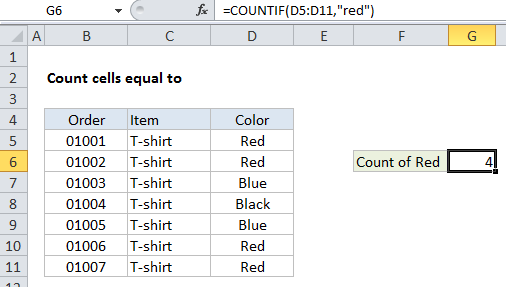
This tutorial shows how to Count cells ‘equal to’ in Excel using the example below;

Formula

=COUNTIF(range,value)
Explanation

To count the number of cells equal to a specific values, you can use the COUNTIF function.

In the example shown, G6 contains this formula:

=COUNTIF(D5:D11,"red")

How this formula works

The COUNTIF function is fully automatic — it counts the number of cells in a range that match the supplied criteria.

For range, we use D5:D11, which contains colors. For criteria, we simply use “red”.

COUNTIF returns the count of values in D5:D11 that are equal to “red”.

Note: when text values are supplied directly as criteria, they need to be enclosed double quotes (“”). If you have a criteria in another cell, you can supply the cell address as criteria without quotes, as seen in this example.

Post navigation

Previous Post:

How to use Excel CHOOSE Function

Next Post:

Customize Ribbon In Excel

Leave a Reply Cancel reply

Your email address will not be published. Required fields are marked *

Learn Basic Excel

Ribbon
Workbook
Worksheets
Format Cells
Find & Select
Sort & Filter
Templates
Print
Share
Protect
Keyboard Shortcuts

Categories

  • Charts
  • Data Analysis
  • Data Validation
  • Excel Functions
    • Cube Functions
    • Database Functions
    • Date and Time Functions
    • Engineering Functions
    • Financial Functions
    • Information Functions
    • Logical Functions
    • Lookup and Reference Functions
    • Math and Trig Functions
    • Statistical Functions
    • Text Functions
    • Web Functions
  • Excel VBA
  • Excel Video Tutorials
  • Formatting
  • Grouping
  • Others

Logical Functions

  • TRUE function: Description, Usage, Syntax, Examples and Explanation
  • NOT function: Description, Usage, Syntax, Examples and Explanation
  • How to return blank in place of #DIV/0! error in Excel
  • Not Equal To ‘<>‘ operator in Excel
  • How to use Excel TRUE Function

Date Time

  • Convert Excel time to decimal minutes
  • How to calculate project start date based on end date in Excel
  • Add decimal minutes to time in Excel
  • Calculate retirement date in Excel
  • How to calculate Day of the Year in Excel

Grouping

  • Group arbitrary text values in Excel
  • Group numbers with VLOOKUP in Excel
  • Calculate conditional mode with criteria in Excel
  • How to randomly assign data to groups in Excel
  • Group times into 3 hour buckets in Excel

General

  • How to generate random number weighted probability in Excel
  • Count cells that do not contain many strings in Excel
  • Sum by group in Excel
  • How to calculate percent sold in Excel
  • How to Insert Cells, Row and Rows in Excel
© 2026 xlsoffice . All Right Reserved. | Teal Smiles | Abbreviations And Their Meaning