
Skip to content
Free Excel Tutorials
  • Home
  • Excel For Beginners
  • Excel Intermediate
  • Advanced Excel For Experts

Data Analysis

  • Conditional Formatting Icon Sets Examples in Excel
  • How To Load Analysis ToolPak in Excel
  • How to do a t-Test in Excel?
  • How to Create One and Two Variable Data Tables in Excel
  • Get column name from index in Excel Table

References

  • How to create dynamic named range with OFFSET in Excel
  • Approximate match with multiple criteria in Excel
  • How to get address of named range in Excel
  • LOOKUP function: Description, Usage, Syntax, Examples and Explanation
  • Extract all partial matches in Excel

Data Validations

  • Excel Data validation date in specific year
  • Excel Data validation only dates between
  • Excel Data validation allow weekday only
  • Excel Data validation whole percentage only
  • Excel Data validation allow uppercase only

How to abbreviate names or words in Excel

by

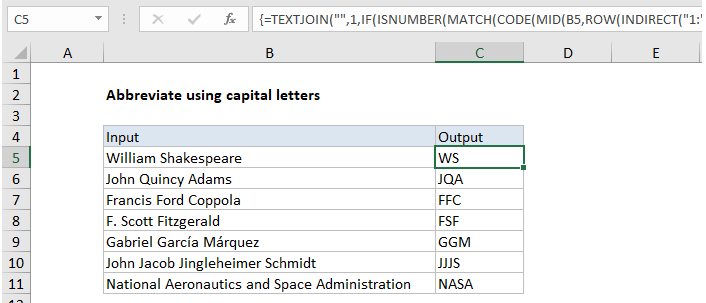
To abbreviate text that contains capital letters, you can try this array formula based on the TEXTJOIN function, which is new in Excel 2016. You can use this approach to create initials from names, or to create acronyms. Only capital letters will survive this formula, so the source text must include capitalized words. You can use the PROPER function to capitalize words if needed. See example below;

 Formula

=TEXTJOIN("",1,IF(ISNUMBER(MATCH(CODE(MID(A1,ROW(INDIRECT("1:"&LEN(A1))),1)),ROW(INDIRECT("63:90")),0)),MID(A1,ROW(INDIRECT("1:"&LEN(A1))),1),""))
How to abbreviate names or words in Excel

Explanation

In the example shown, the formula in C5 is:

=TEXTJOIN("",1,IF(ISNUMBER(MATCH(CODE(MID(B5,ROW(INDIRECT("1:"&LEN(B5))),1)),ROW(INDIRECT("63:90")),0)),MID(B5,ROW(INDIRECT("1:"&LEN(B5))),1),""))

How this formula works

Working from the inside out, the MID function is used to cast the string into an array of individual letters:

MID(B5,ROW(INDIRECT("1:"&LEN(B5))),1)

In this part of the formula, MID, ROW, INDIRECT, and LEN are used to convert a string to an array or letters, as described here.

MID returns an array of all characters in the text.

{“W”;”i”;”l”;”l”;”i”;”a”;”m”;” “;”S”;”h”;”a”;”k”;”e”;”s”;”p”;”e”;”a”;”r”;”e”}

This array is fed into the CODE function, which outputs an array of numeric ascii codes, one for each letter.

Separately, ROW and INDIRECT are used to create another numeric array:

ROW(INDIRECT("63:90")

This is the clever bit. The numbers 63 to 90 correspond to the ascii codes for all capital letters between A-Z.  This array goes into the MATCH function as the lookup array, and the original array of ascii codes is provided as the lookup value.

MATCH then returns either a number (based on a position) or the #N/A error. Numbers represent capital letters, so the ISNUMBER function is used together with the IF function to filter results. Only characters whose ascii code is between 63 and 90 will make into the final array, which is then reassembled with the TEXTJOIN function to create the final abbreviation or acronym.

Post navigation

Previous Post:

DECIMAL function: Description, Usage, Syntax, Examples and Explanation

Next Post:

AVERAGE function: Description, Usage, Syntax, Examples and Explanation

Leave a Reply Cancel reply

Your email address will not be published. Required fields are marked *

Learn Basic Excel

Ribbon
Workbook
Worksheets
Format Cells
Find & Select
Sort & Filter
Templates
Print
Share
Protect
Keyboard Shortcuts

Categories

  • Charts
  • Data Analysis
  • Data Validation
  • Excel Functions
    • Cube Functions
    • Database Functions
    • Date and Time Functions
    • Engineering Functions
    • Financial Functions
    • Information Functions
    • Logical Functions
    • Lookup and Reference Functions
    • Math and Trig Functions
    • Statistical Functions
    • Text Functions
    • Web Functions
  • Excel VBA
  • Excel Video Tutorials
  • Formatting
  • Grouping
  • Others

Logical Functions

  • Nested IF function example in Excel
  • IFERROR function: Description, Usage, Syntax, Examples and Explanation
  • NOT function: Description, Usage, Syntax, Examples and Explanation
  • AND function: Description, Usage, Syntax, Examples and Explanation
  • How to use Excel OR Function

Date Time

  • Display Date is same month in Excel
  • Convert decimal minutes to Excel time
  • Basic Overtime Calculation Formula in Excel
  • Get week number from date in Excel
  • Two ways to sum time over 30 minutes in Excel

Grouping

  • How to randomly assign data to groups in Excel
  • Group arbitrary text values in Excel
  • Map text to numbers in Excel
  • Group numbers at uneven intervals in Excel
  • Group numbers with VLOOKUP in Excel

General

  • Select, Insert, Rename, Move, Delete Worksheets in Excel
  • Find, Select, Replace and Go To Special in Excel
  • Transpose: Switch ‘Rows to Columns’ or ‘Columns to Rows’ in Excel
  • Flash Fill in Excel
  • Using Existing Templates in Excel
© 2026 xlsoffice . All Right Reserved. | Teal Smiles | Abbreviations And Their Meaning