

Skip to content
Free Excel Tutorials
  • Home
  • Excel For Beginners
  • Excel Intermediate
  • Advanced Excel For Experts

Data Analysis

  • How to calculate correlation coefficient Correlation in Excel
  • Create Scatter Chart in Excel
  • Get column index in Excel Table
  • Excel Frequency Function Example
  • How to combine 2 or more chart types in a single chart in Excel

References

  • Convert text string to valid reference in Excel using Indirect function
  • CHOOSE function: Description, Usage, Syntax, Examples and Explanation
  • How to use Excel VLOOKUP Function
  • Last row number in range
  • How to use Excel COLUMN Function

Data Validations

  • Excel Data validation whole percentage only
  • Excel Data validation must contain specific text
  • Excel Data validation unique values only
  • Excel Data validation don’t exceed total
  • Excel Data validation with conditional list

Common Errors in Excel

by

It could be challenging sometimes working in excel and you find ##### error, #NAME? error , #VALUE! error , #DIV/0! error and #REF! error on your worksheet.

This chapter teaches you how to deal with some common formula errors in Excel.

##### error

When your cell contains this error code, the column isn’t wide enough to display the value.
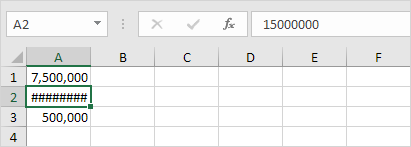
1. Click on the right border of the column A header and increase the column width.
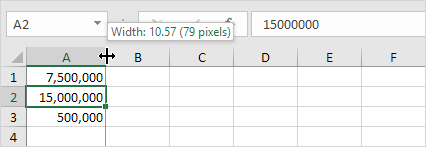
Tip: double click the right border of the column A header to automatically fit the widest entry in column A.

#VALUE! error

Excel displays the #VALUE! error when a formula has the wrong type of argument.
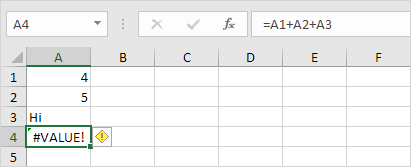
1a. Change the value of cell A3 to a number.
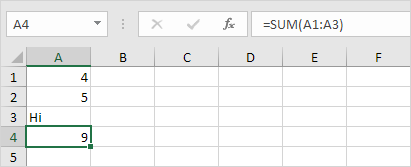
1b. Use a function to ignore cells that contain text.
#DIV/0! error

Excel displays the #DIV/0! error when a formula tries to divide a number by 0 or an empty cell.
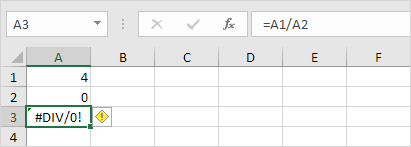
1a. Change the value of cell A2 to a value that is not equal to 0.
1b. Prevent the error from being displayed by using the logical function IF.
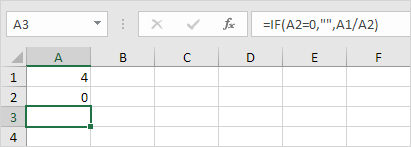
Explanation: if cell A2 equals 0, an empty string (“”) is displayed. If not, the result of the formula A1/A2 is displayed.

#REF! error

Excel displays the #REF! error when a formula refers to a cell that is not valid.

1. Cell C1 references cell A1 and cell B1.
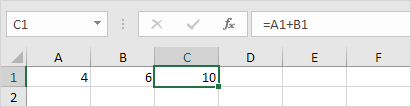
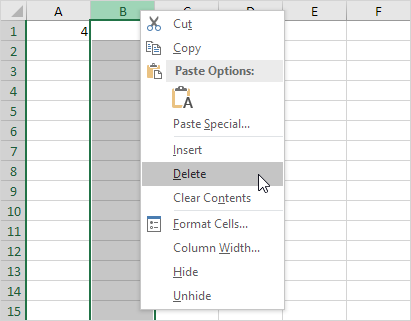
2. Delete column B. To achieve this, right click the column B header and click Delete.
3. Select cell B1. The reference to cell B1 is not valid anymore.
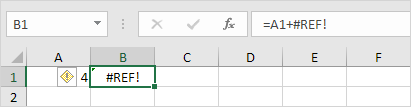
4. To fix this error, you can either delete +#REF! in the formula of cell B1 or you can undo your action by pressing CTRL + z

#NAME? error

The #NAME? error occurs when Excel does not recognize text in a formula.
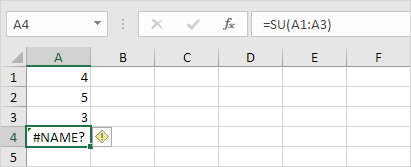
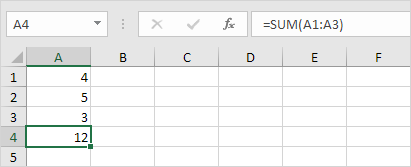
1. Simply correct SU to SUM.
Post navigation

Previous Post:

TRUE function: Description, Usage, Syntax, Examples and Explanation

Next Post:

Excel Pie Chart

Leave a Reply Cancel reply

Your email address will not be published. Required fields are marked *

Learn Basic Excel

Ribbon
Workbook
Worksheets
Format Cells
Find & Select
Sort & Filter
Templates
Print
Share
Protect
Keyboard Shortcuts

Categories

  • Charts
  • Data Analysis
  • Data Validation
  • Excel Functions
    • Cube Functions
    • Database Functions
    • Date and Time Functions
    • Engineering Functions
    • Financial Functions
    • Information Functions
    • Logical Functions
    • Lookup and Reference Functions
    • Math and Trig Functions
    • Statistical Functions
    • Text Functions
    • Web Functions
  • Excel VBA
  • Excel Video Tutorials
  • Formatting
  • Grouping
  • Others

Logical Functions

  • IF with wildcards in Excel
  • SWITCH function: Description, Usage, Syntax, Examples and Explanation
  • Extract multiple matches into separate rows in Excel
  • How to use Excel XOR Function
  • How to use Excel TRUE Function

Date Time

  • Get first day of month in Excel
  • Display the current date in Excel
  • Get days, months, and years between dates in Excel
  • EDATE function: Description, Usage, Syntax, Examples and Explanation
  • Count day of week between dates in Excel

Grouping

  • How to randomly assign data to groups in Excel
  • If cell contains one of many things in Excel
  • How to randomly assign people to groups in Excel
  • Group numbers with VLOOKUP in Excel
  • Group numbers at uneven intervals in Excel

General

  • How to generate random number between two numbers in Excel
  • AutoFit Column Width, AutoFit Row Height in Excel
  • Check if multiple cells have same value in Excel
  • How to calculate percent sold in Excel
  • Creating and Opening an existing file in Excel
© 2026 xlsoffice . All Right Reserved. | Teal Smiles | Abbreviations And Their Meaning